Manage Projects
The Manage Projects section is the core of the platform where administrators can create and manage real estate investment projects. Each project contains detailed information about the property, investment terms, and available shares.
Overview
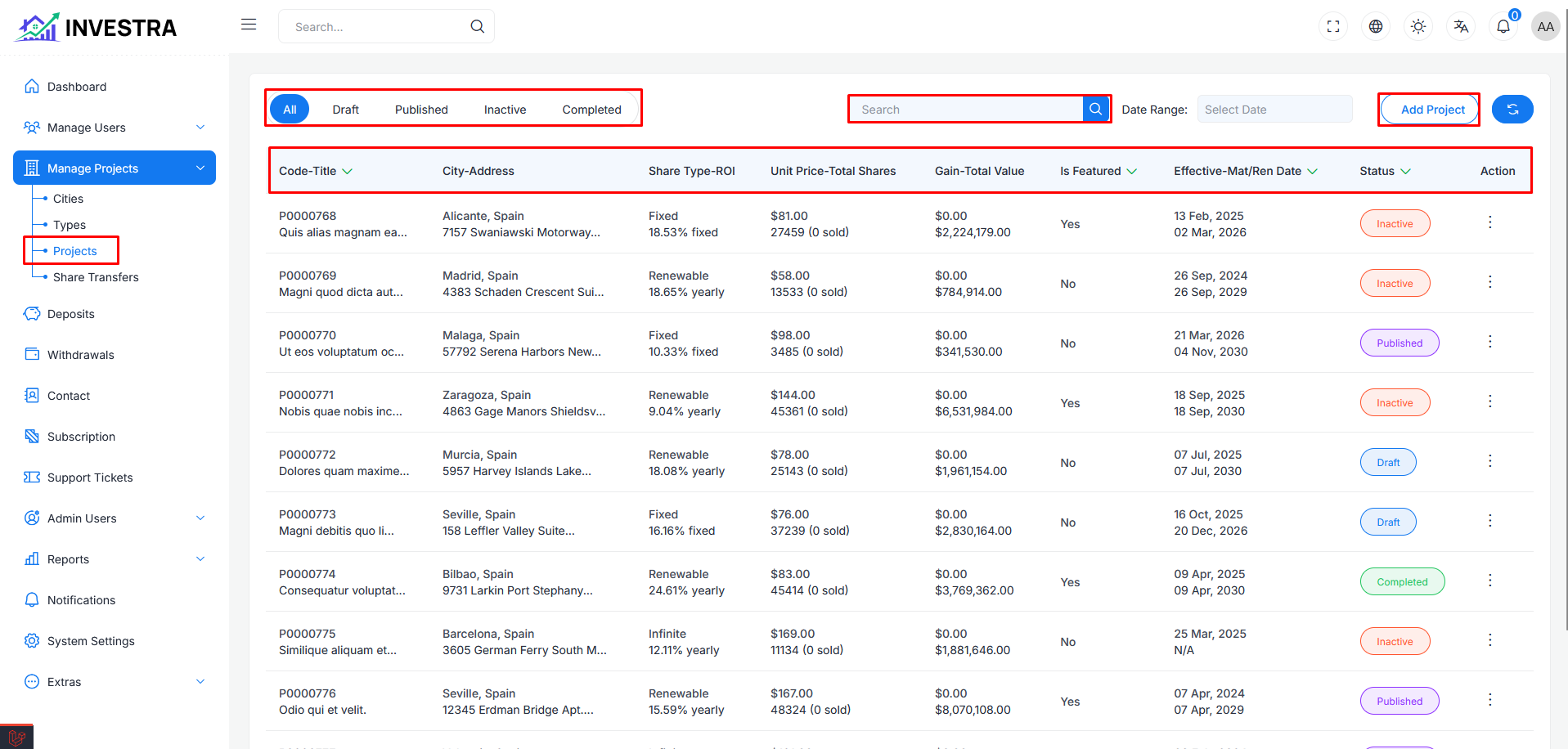
The Manage Projects page displays all projects in a table format. You can access this section from the sidebar under Manage Projects → Projects.
Page Controls
At the top of the page, you'll find:
- Status Tabs: Filter projects by status (All, Draft, Published, Inactive, Completed)
- Search: Search projects by name or code
- Date Range: Filter projects by date range
- Add Project: Button to create a new project
- Refresh: Reload the projects list
Table Columns
Each project row displays the following information:
- Code-Title: Project code and title
- City-Address: Location details of the project
- Contract Type-ROI: Contract type and return on investment percentage
- Unit Price-Total Contract: Price per unit and total number of shares
- Gain-Total Value: Profit amount and total project value
- Is Featured: Whether the project is featured on the frontend
- Effective-Mat/Ren Date: Effective date and maturity/renewal date
- Status: Current status (Draft, Published, Completed, etc.)
- Action: Options to manage each project
Creating a New Project
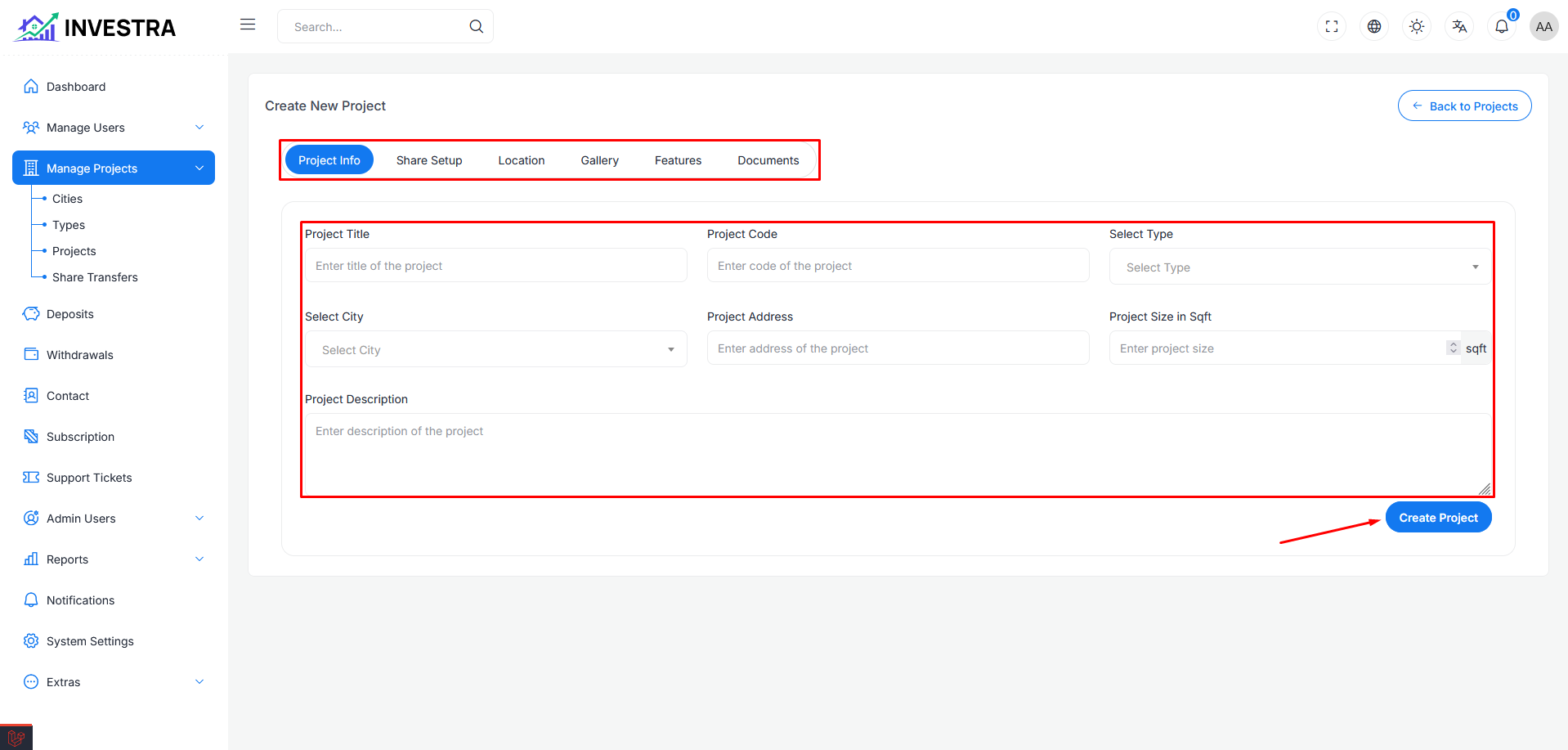
Click the Add Project button to start creating a new project. The creation form uses a tabbed interface to organize different aspects of the project.
Project Creation Tabs
The project form is organized into the following tabs:
- Project Info: Basic project information
- Contract Setup: Contract and investment configuration
- Location: Geographic location details
- Gallery: Images and video content
- Features: Project features and amenities
- Documents: Related documents and files
Project Info Tab
The first tab contains essential project details:
- Project Title: Enter the title of the project
- Project Code: Unique code identifier for the project
- Select Type: Choose the project type (Residential, Commercial, etc.)
- Select City: Select the city where the project is located
- Project Address: Full address of the project
- Project Size in Sqft: Total size of the project in square feet
- Project Description: Detailed description of the project
Click Create Project to save the project and proceed to additional configuration.
Configuring Project Details
After creating the project, you can configure additional details through the other tabs.
Contract Setup Tab
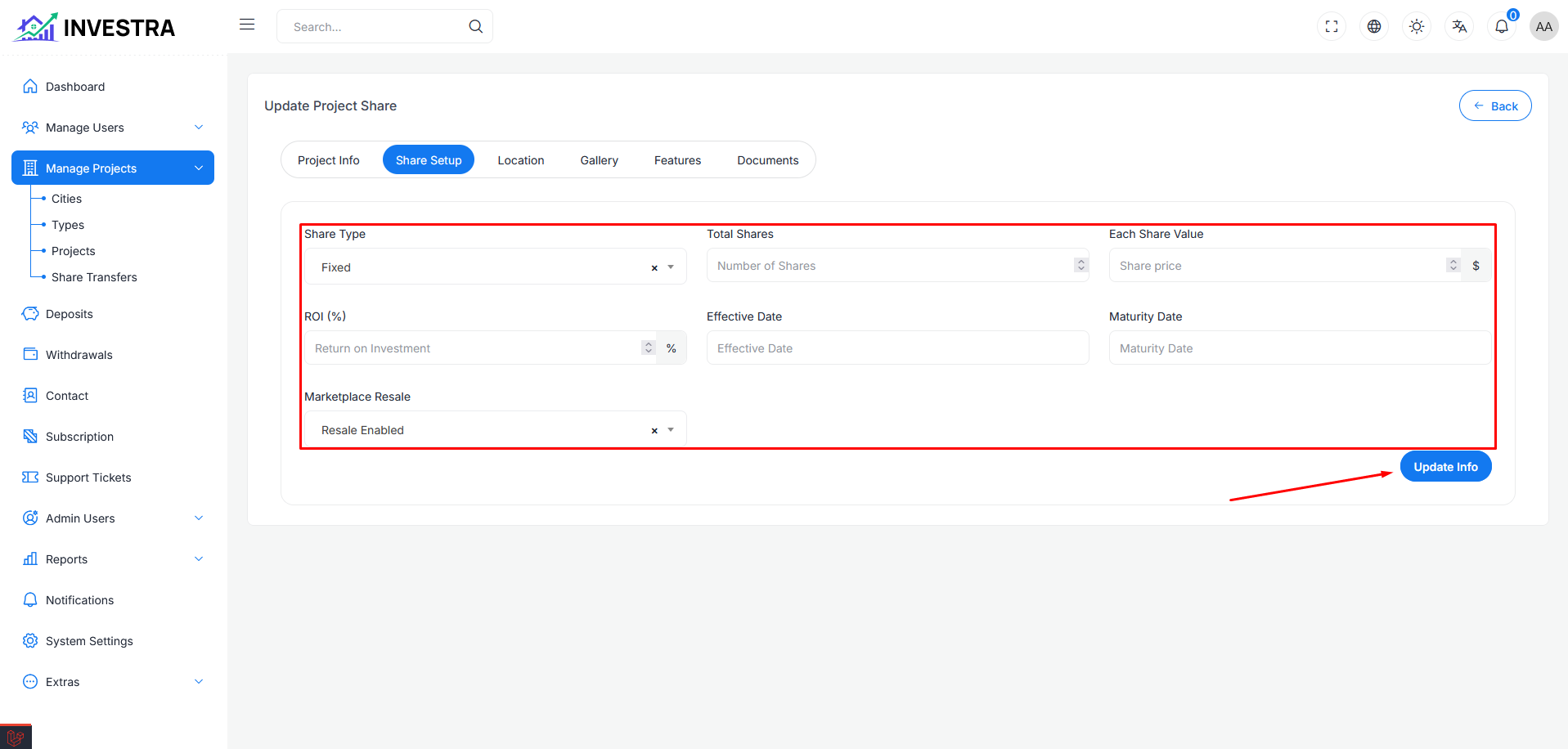
Configure the investment and contract settings:
- Contract Type: Select the type of contract (Fixed, Renewable, etc.)
- Total Shares: Number of shares available
- Each Contract Value: Price per contract
- ROI (%): Return on investment percentage
- Effective Date: When the contract becomes effective
- Maturity Date: Contract maturity/end date
- Marketplace Resale: Enable or disable resale on the marketplace
Click Update Info to save the contract configuration.
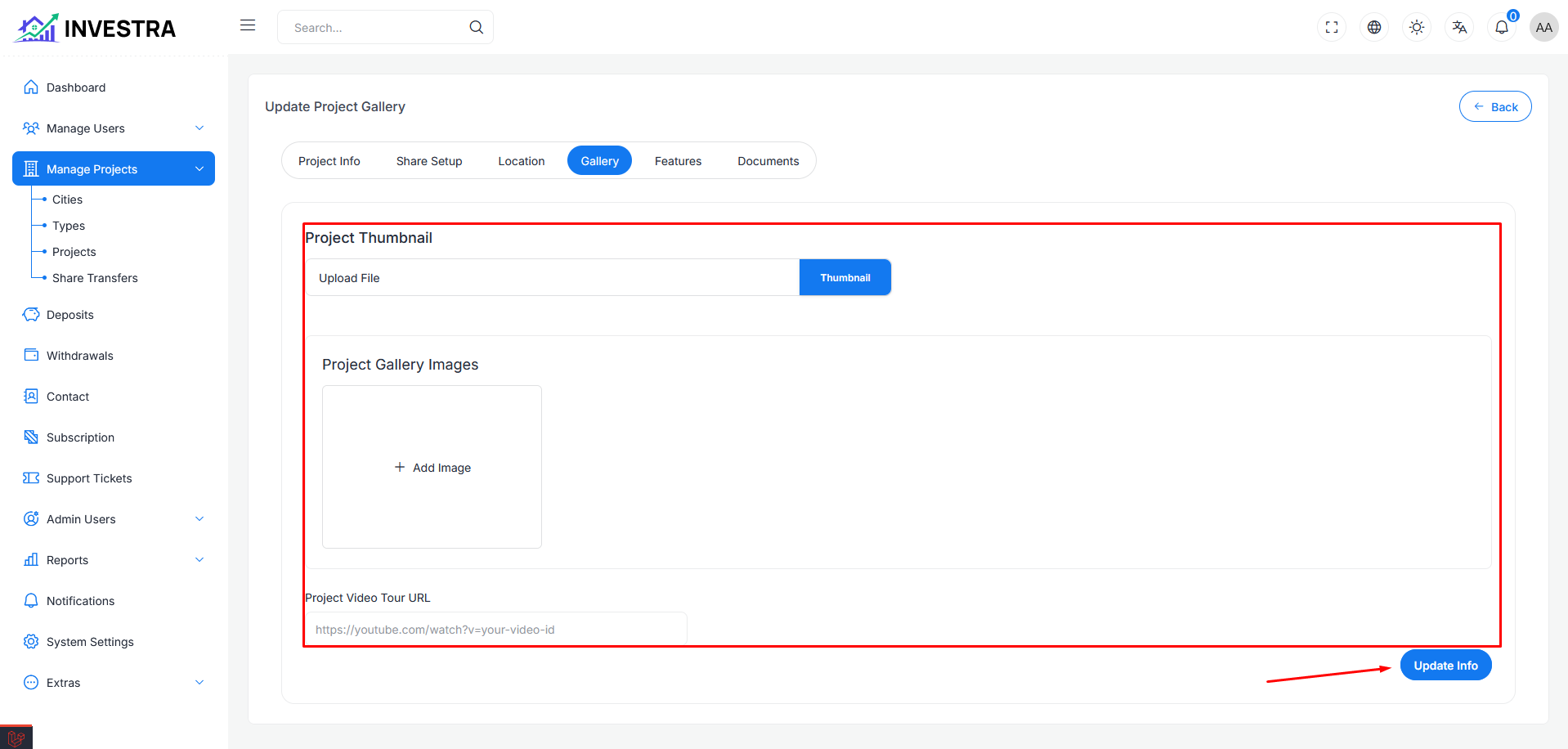
Gallery Tab
Upload visual content for the project:
- Project Thumbnail: Upload the main thumbnail image for the project
- Project Gallery Images: Add multiple gallery images using the + Add Image button
- Project Video Tour URL: Add a YouTube video URL for virtual tours
Click Update Info to save the gallery content.
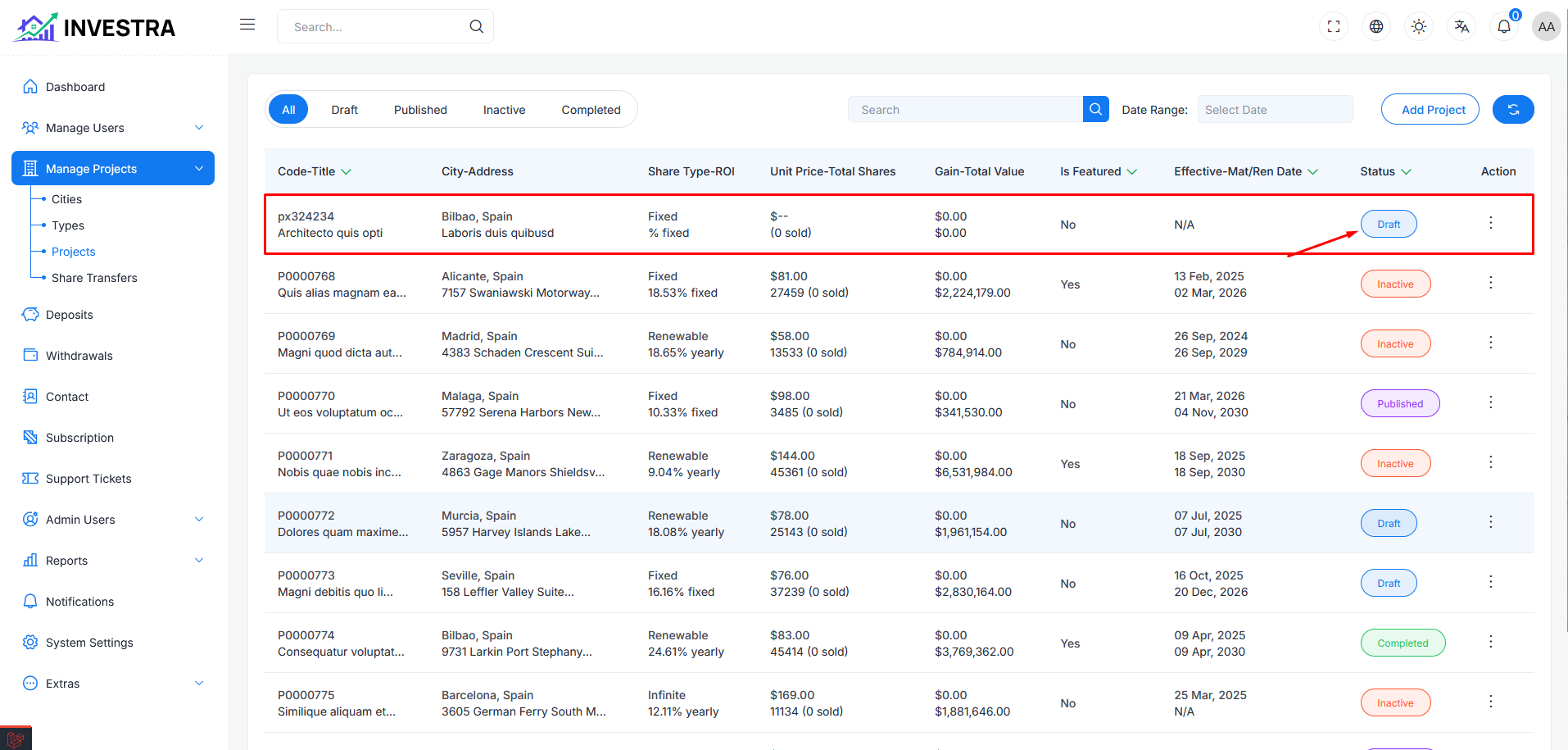
Project Draft Status
When a new project is created, it automatically starts with a Draft status. This allows administrators to complete all project information before making it visible to users.
New projects are saved as drafts until all required information is complete and the project is ready to be published.
Project Management Actions
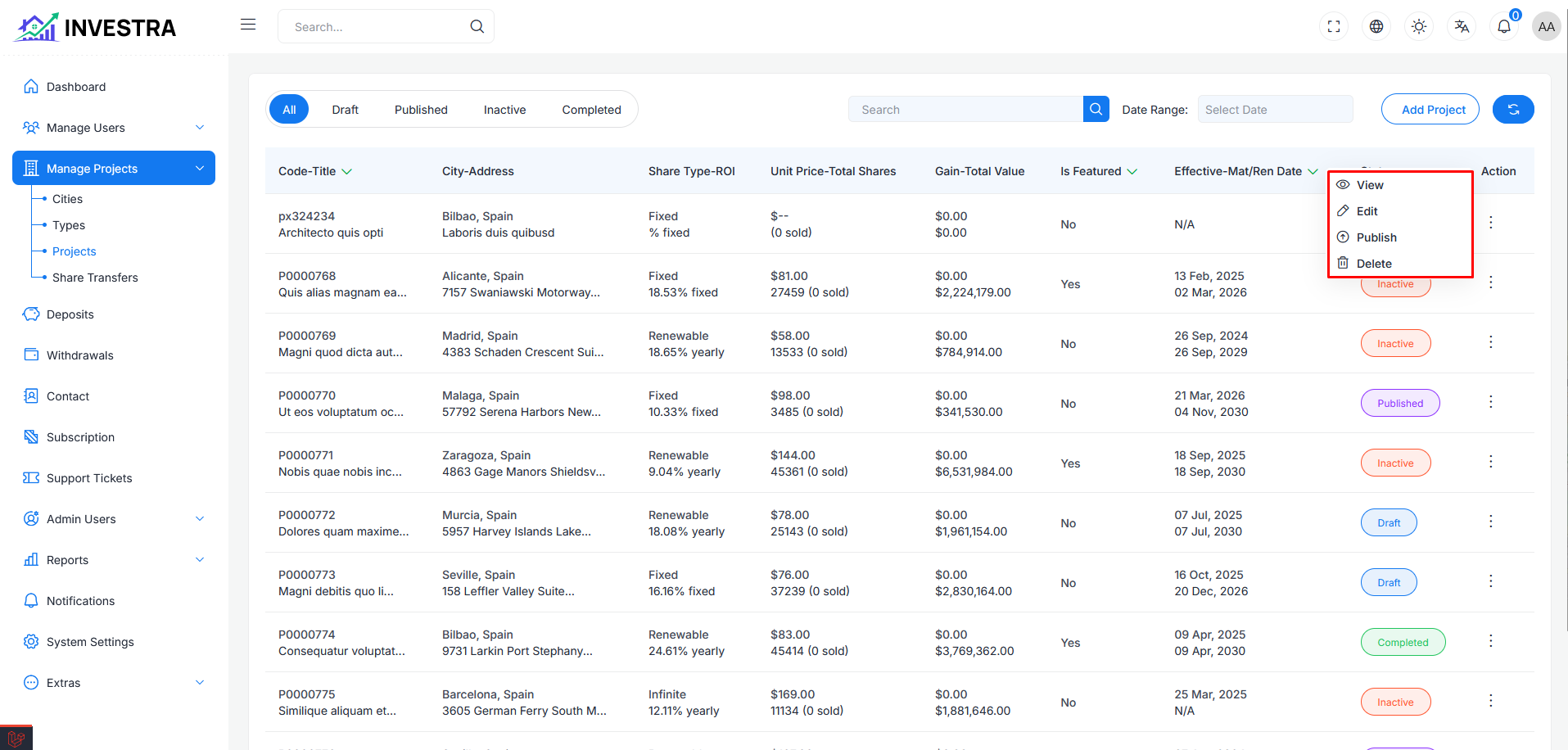
Action Menu Options
Each project row includes an action menu with the following options:
- Edit: Modify project details
- View: Preview the project
- Publish: Make the project visible to users (available for draft projects)
- Unpublish: Hide the project from users
- Delete: Remove the project from the system
- Change Status: Update the project status
Viewing Project Details
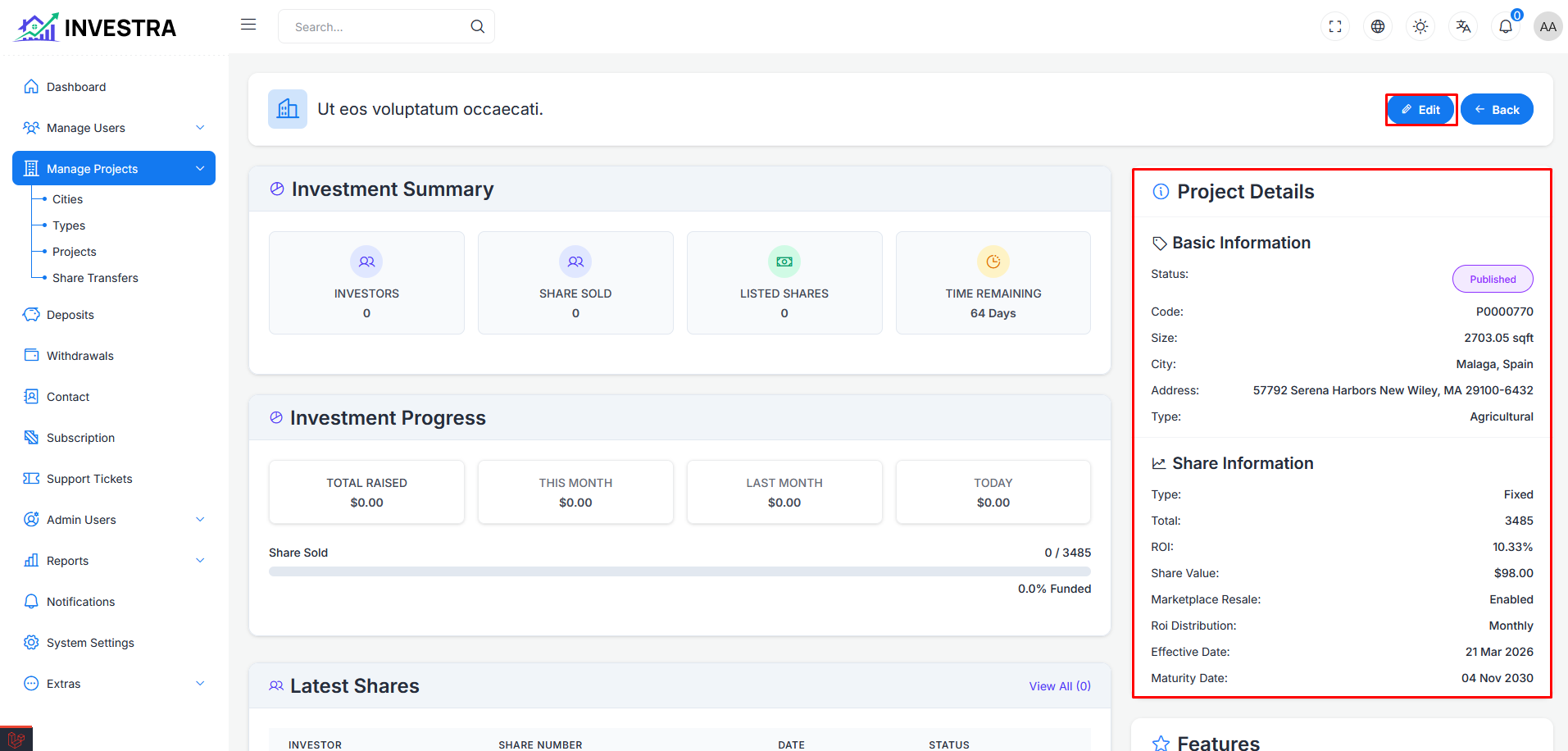
When selecting View from the action menu, you'll see a comprehensive overview of the project with all its details displayed in organized sections.
Project Header and Overview
At the top of the details page, you'll find:
- Project Title: The name of the project with Edit and Back buttons
- Investment Summary: Quick stats showing Investors count, Shares Sold, Listed Shares, and Time Remaining
- Investment Progress: Financial metrics including Total Raised, This Month, Last Month, and Today earnings with a progress bar showing funding percentage
- Latest Shares: Table displaying recent contract purchases with Investor, Contract Number, Date, and Status
On the right sidebar, you'll see:
- Project Details - Basic Information: Status, Code, Size, City, Address, and Type
- Contract Information: Type, Total shares, ROI percentage, Contract Value, Marketplace Resale status, ROI Distribution frequency, Effective Date, and Renewal Date
- Features: List of project features and amenities
Section-Specific Editing
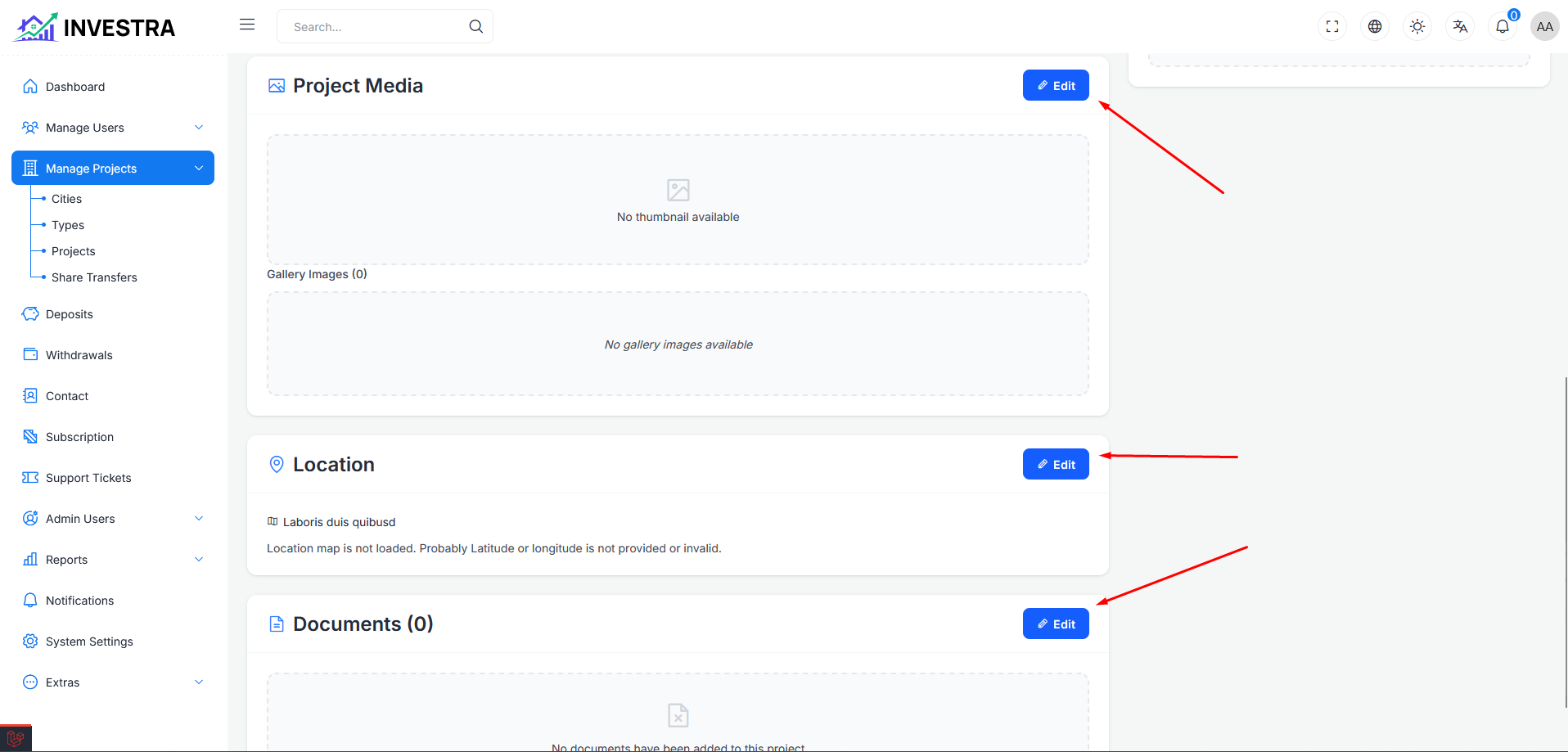
Below the overview, the details page displays content sections, each with its own Edit button that takes you directly to the corresponding tab:
- Project Media: Shows project thumbnail and gallery images. Edit button redirects to Gallery tab
- Location: Displays project address and map. Edit button redirects to Location tab
- Documents: Lists all uploaded documents. Edit button redirects to Documents tab
This allows for quick editing of specific sections without navigating through all tabs.
Publishing a Project
To publish a project and make it available to users:
- Complete all required project information
- Review the project details for accuracy
- Click on the Action menu (three dots)
- Select Publish from the dropdown
Once published, the project will be visible on the frontend and users can start investing.
Make sure all project details, images, and documents are complete before publishing. This ensures a professional presentation to potential investors.
Marketplace Listing
Administrators can list unsold project shares on the marketplace for users to purchase.
Accessing Marketplace Listing
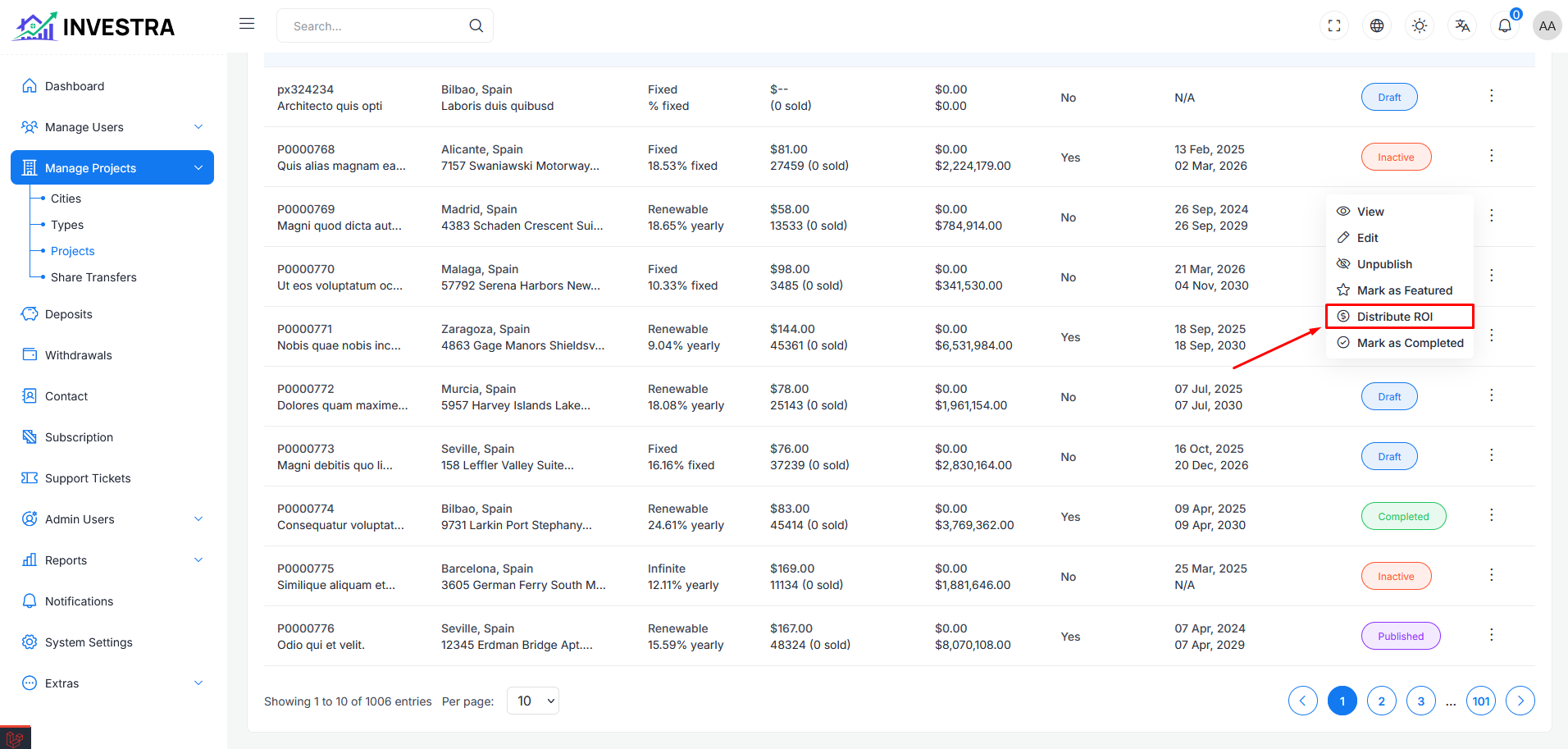
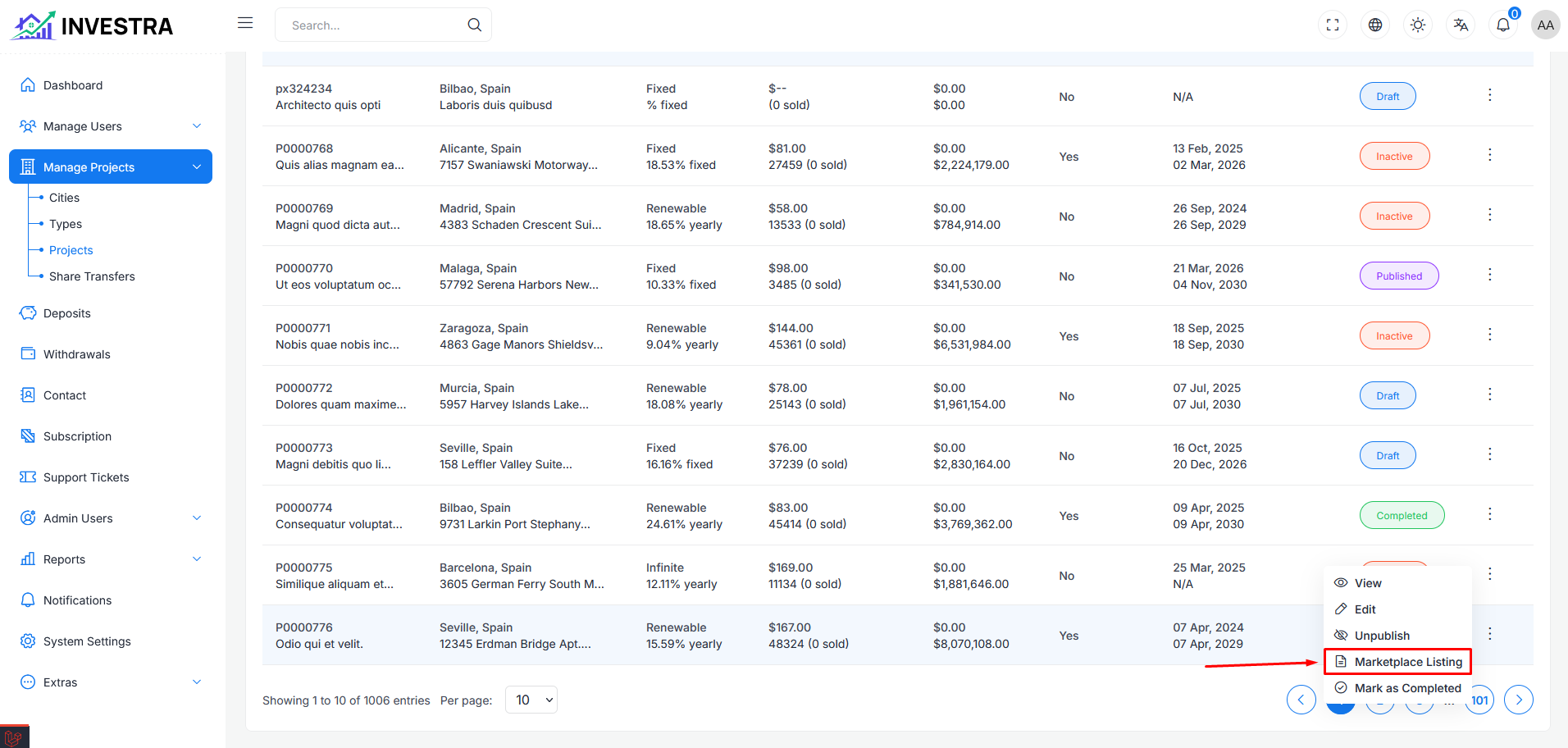
From the projects list, click on the Action menu (three dots) for any project. The menu includes the following options:
- View: View project details
- Edit: Edit project information
- Unpublish: Hide the project from users
- Marketplace Listing: Access the contract listings page
- Distribute ROI: Distribute returns to investors
- Mark as Completed: Mark the project as completed
Contract Listings Page
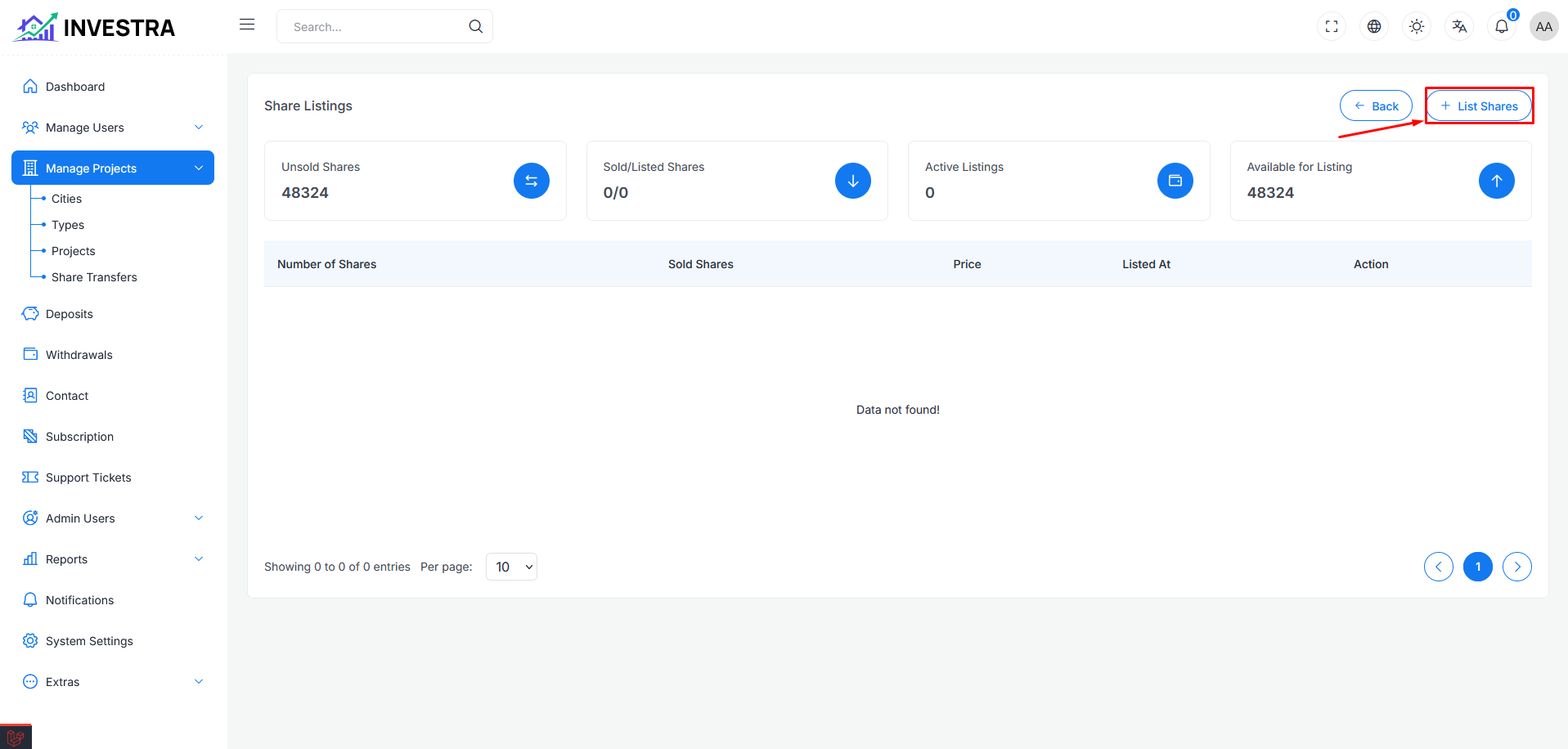
When you click Marketplace Listing, you'll be redirected to the Contract Listings page. This page shows:
Summary Stats
- Unsold Shares: Total number of unsold shares
- Sold/Listed Shares: Number of sold vs listed shares
- Active Listings: Currently active marketplace listings
- Available for Listing: Shares available to be listed
Listings Table
The table displays contract listings with the following columns:
- Number of Shares: How many shares in the listing
- Sold Shares: Number of shares sold from this listing
- Price: Price per contract
- Listed At: Date and time of listing
- Action: Options to manage the listing
Click + List Shares to create a new listing.
List Unsold Shares
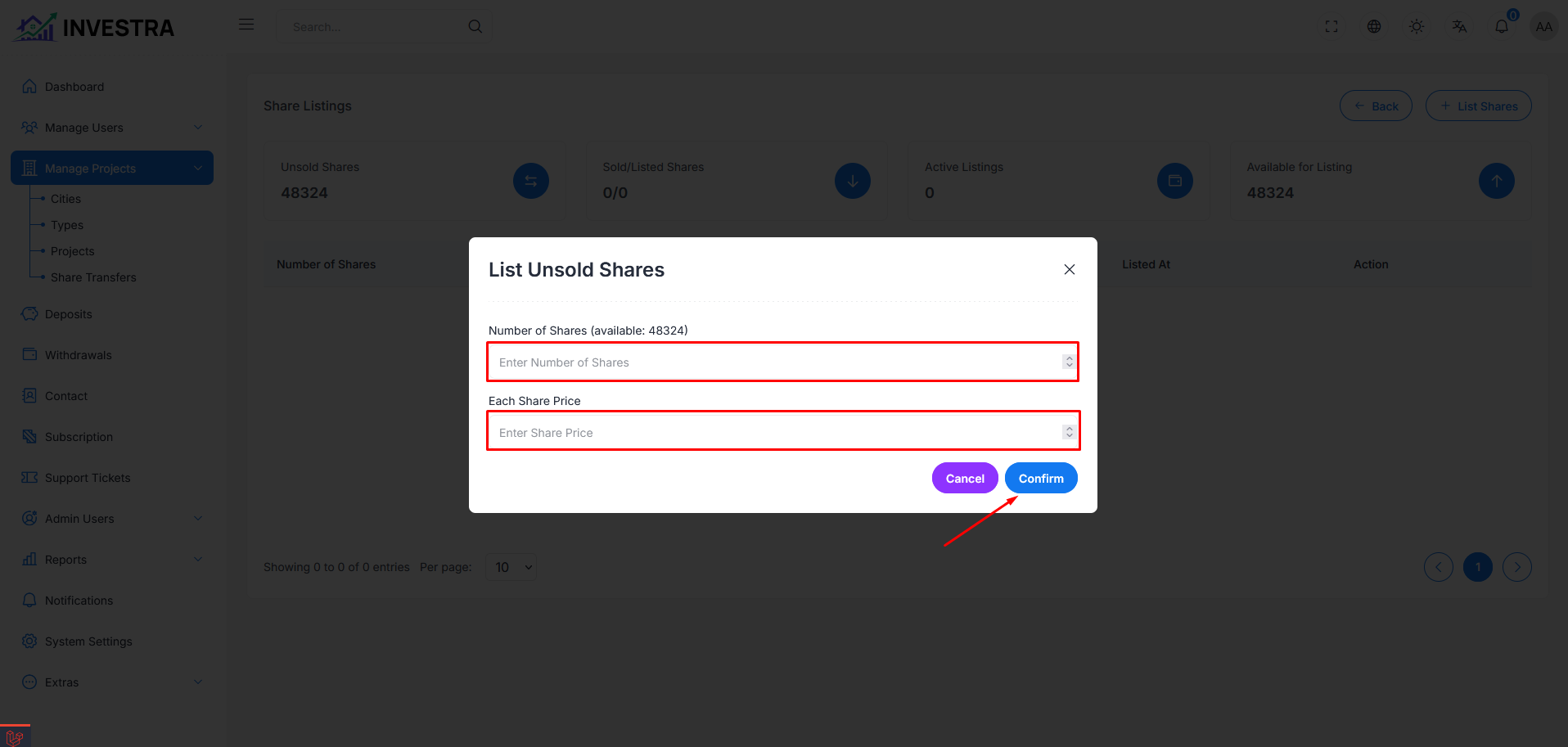
When clicking + List Shares, a modal opens to create a new marketplace listing:
- Number of Shares: Enter the number of shares to list (shows available quantity)
- Each Contract Price: Set the price per contract
- Cancel: Close the modal without saving
- Confirm: Create the marketplace listing
ROI Distribution
Administrators can distribute returns on investment (ROI) to contract holders directly from the projects list.
Distributing ROI
To distribute ROI to investors:
- From the projects list, click on the Action menu (three dots) for the project
- Select Distribute ROI from the dropdown menu
- The system will process and distribute the ROI to all contract holders based on their investment
The action menu also shows other options like View, Edit, Unpublish, and Mark as Completed.